
Chapter 6 · 6.5
Presenting and Presenter View
Watch it in a short video
Starting the slideshow
On the Home tab, click the arrow next to the Start slideshow button (1) and choose:
- Show from Beginning: starts at the first slide (shortcut Ctrl + F5, on Mac Cmd + Shift + Enter);
- Show from Current Slide: starts at the slide you've selected;
- Show Presenter View: the audience sees the slide, while you also see your notes and how long you've been presenting.


While presenting
| What | Key |
|---|---|
| Next slide or animation | Space, Enter, Right arrow, Page Down or click |
| Previous slide or animation | Left arrow or Page Up |
| Go to the first or last slide | Home or End |
| Stop | Esc |
At the bottom of the screen there's a bar you can also use to navigate, pause and choose a slide.
With Show Settings in the same menu, you can, for example, set the presentation to loop continuously. See Making a presentation loop continuously (trade fair, waiting room, shop window).
Please note: in some browsers, Ctrl + F5 reloads the page. In that case, use the Start slideshow button instead.
Notes for the speaker
Below each slide there's a box that says Click to add notes. Type what you want to say there. The audience won't see your notes, but you will see them in Presenter View. Can't see the box? On the View tab, tick Notes (1).
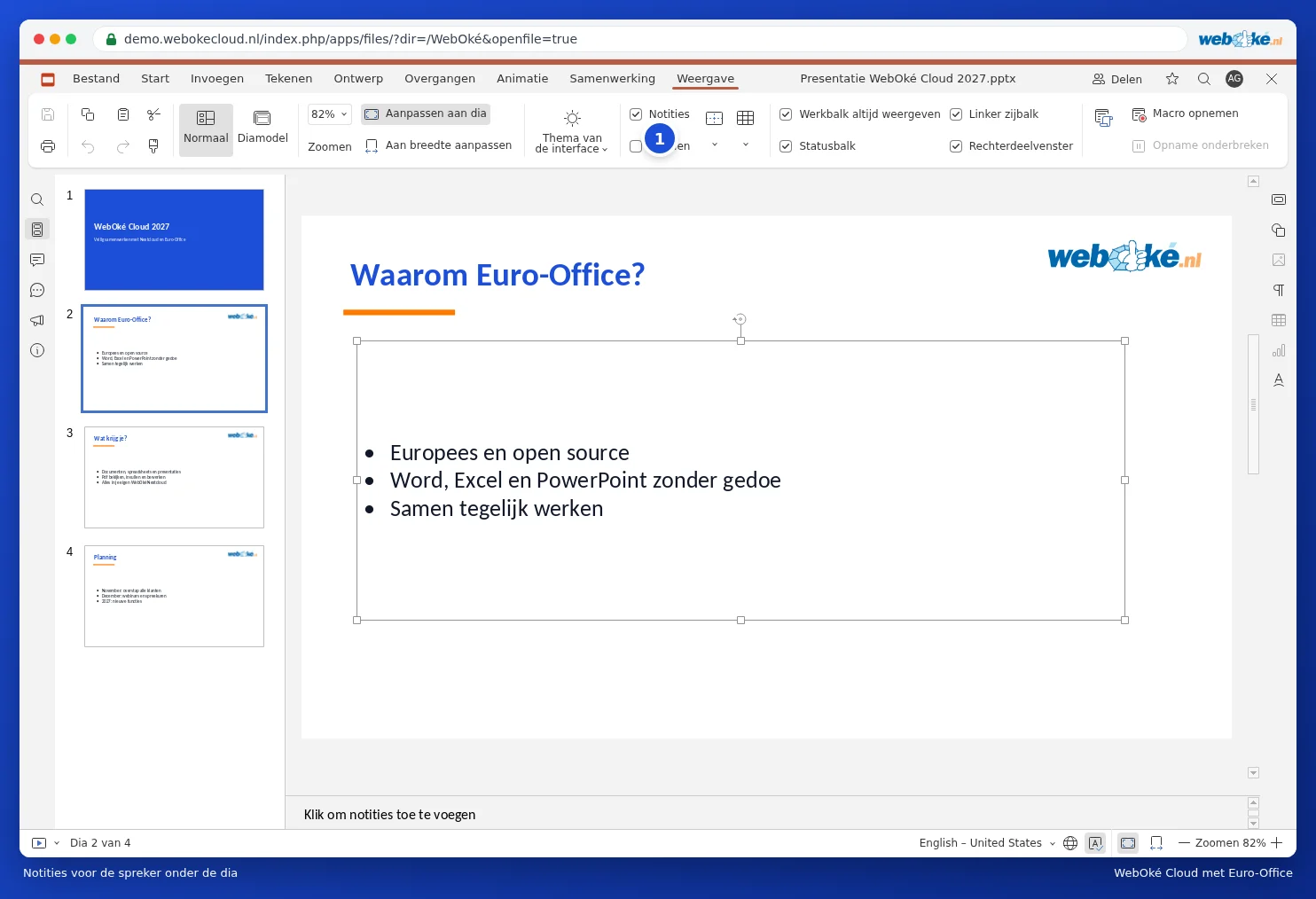
Please note: Presenter View opens in a new window. If your browser blocks this, allow pop-ups for your WebOké Nextcloud. Presenting with a projector? Set your screen to extend (not duplicate) and drag the window with the slide to the projector.