
Chapter 1 · 1.3
Tour: the dashboard and your limits
After logging in, you'll land on the dashboard. This is the home page of DirectAdmin. You can always get back here via Dashboard in the breadcrumb, at the top left of every page.
What's shown where?
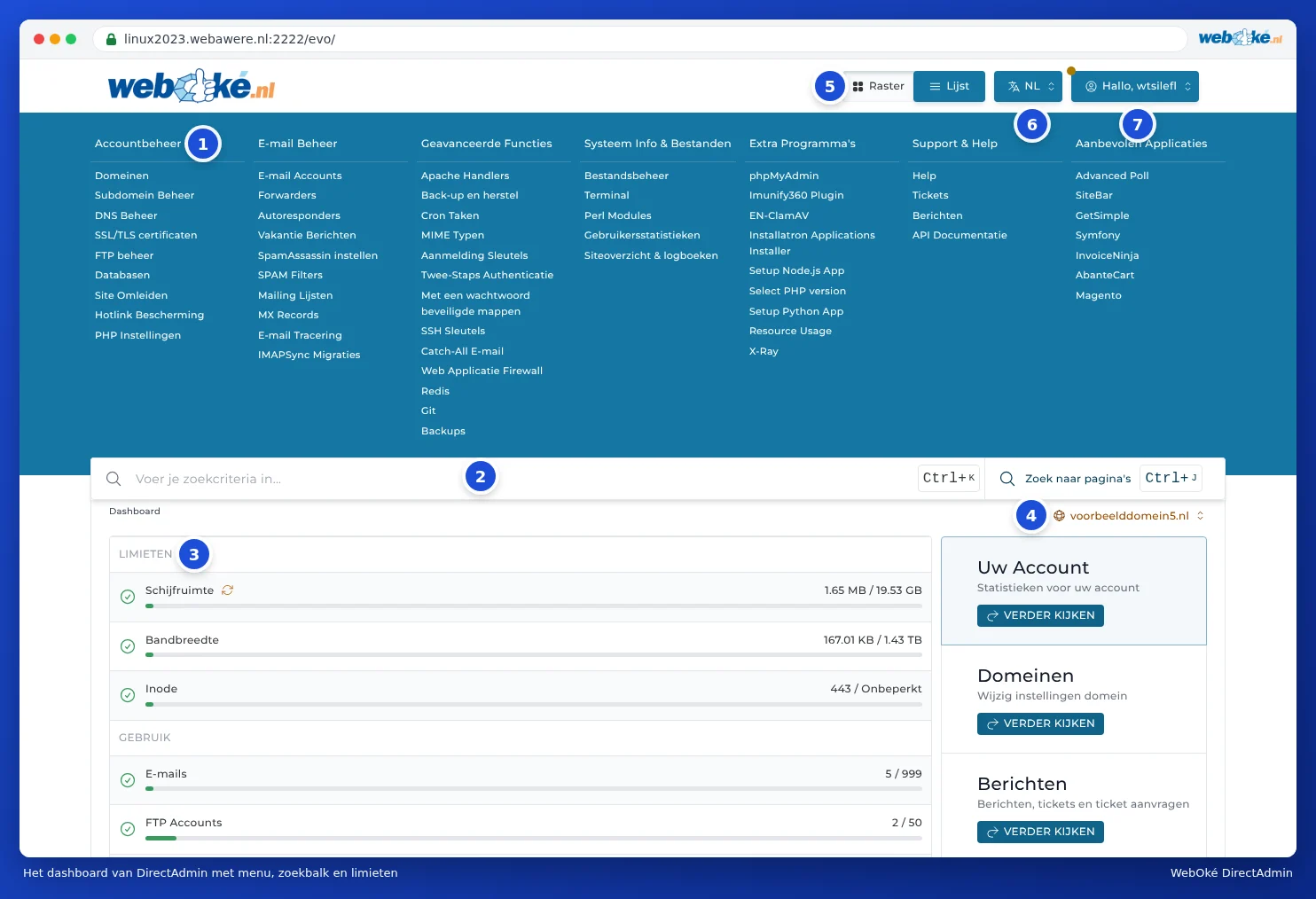
- The menu with all sections, grouped into categories such as Account Manager and E-mail Manager. See The menu: Grid and List.
- The search bar. Use this to quickly find a domain, e-mail address or page. See Quick search with Ctrl+K and Ctrl+J.
- Your limits and usage: how much of your package you're using.
- The domain selector: which domain you're working on. See Working with multiple domains: the domain selector.
- Grid and List: how the menu is displayed. See The menu: Grid and List.
- The language button: the language of DirectAdmin. See Changing the language of DirectAdmin.
- The user menu behind Hello, and your username: Message Area, Login Keys, Login History, Profile, Skin Options and Logout. See chapter 3, starting with Your profile and contact details.
Your limits and usage
The dashboard gives you an instant overview of how much space your package has and how much you're using. Each line has a progress bar. A green tick means everything's fine.

| Line | What does it mean? |
|---|---|
| Disk Space (1) | How much storage you're using out of the total. Your website, your e-mail, your databases and your backups all count towards this. Use the circular arrow icon next to it to recalculate your disk space. |
| Bandwidth (2) | Data traffic this month: everything visitors download from your website and all mail that comes in and goes out. This resets every month. See Data traffic (bandwidth) and what happens when you run out. |
| Inode (3) | The number of files and folders in your package. Every e-mail counts as a file too. If it says Unlimited, there's no fixed limit. |
| Usage (4) | How many e-mail addresses, FTP accounts and databases you have, compared to your package's maximum. For example, 1 / 999 means you have 1 and can create up to 999. |
| Mijn Account Info (5) | The main domain of your package and how long you've had the package. |
On the right, you'll find three shortcuts (6): Your Account (statistics, see User statistics: visitors and data traffic), Domains (your domain settings, see Viewing the domains in your package) and Message Area (see Messages in DirectAdmin). Click VERDER KIJKEN to open them.
What happens when a limit is reached?
- Disk space full: you can no longer save files and new mail won't be delivered. Senders will then get an error message. See Storage full: where's the space going?.
- Maximum number of e-mail addresses, databases or FTP accounts reached: you can't create any new ones. Anything you already have will keep working as normal.
- Bandwidth used up: see Data traffic (bandwidth) and what happens when you run out.
DirectAdmin can send you a message when you're close to a limit (at 95% disk space or inodes and 80% bandwidth). You can switch this notification on or off in your profile, under Limit Notice (see Your profile and contact details). In addition, WebOké checks your storage every night and will e-mail you if your package is nearly full.
Can I do this in My WebOké too?
Yes, you can also see your usage in My WebOké. Go to My Products and click Admin next to your package. There you can also order extra storage under Configurable options, or switch to a bigger package under Change hosting package.
Tip: Is your disk space nearly full and not sure why? It's often old backups or large mailboxes. See Storage full: where's the space going? for how to find out.