
Chapter 10 · 10.2
Paying an invoice (including several at once)
You pay an outstanding invoice in My WebOké. You can pay a single invoice, a few invoices of your own choosing, or everything that's outstanding in one go. In every case, you end up on the same payment screen, where you choose how you want to pay.
Paying a single invoice
- Go to My Invoices and select the Outstanding tab (1).
- Click Pay next to the invoice (2), or open the invoice and click Pay now.
- Choose a payment method on the payment screen and complete the payment.

The invoice email also includes a payment link. That takes you to the same payment screen, even if you're not logged in.

On the invoice page, you pay using Pay now (1). You'll also see two QR codes (2 and 3).
Tip: scan the first QR code (2) with your phone and complete the payment there. Would you rather transfer the money yourself? Then scan the second QR code (3) with your banking app: our IBAN, the amount and the invoice number will already be filled in. Not every banking app recognises this code; the invoice page shows which banks it works with.
Paying everything at once
If several invoices are outstanding, you'll see above the overview how many there are and how much is still outstanding. Click Pay all there. You then pay all outstanding invoices with a single payment. We allocate the payment to your invoices, starting with the oldest.
Choosing a few invoices
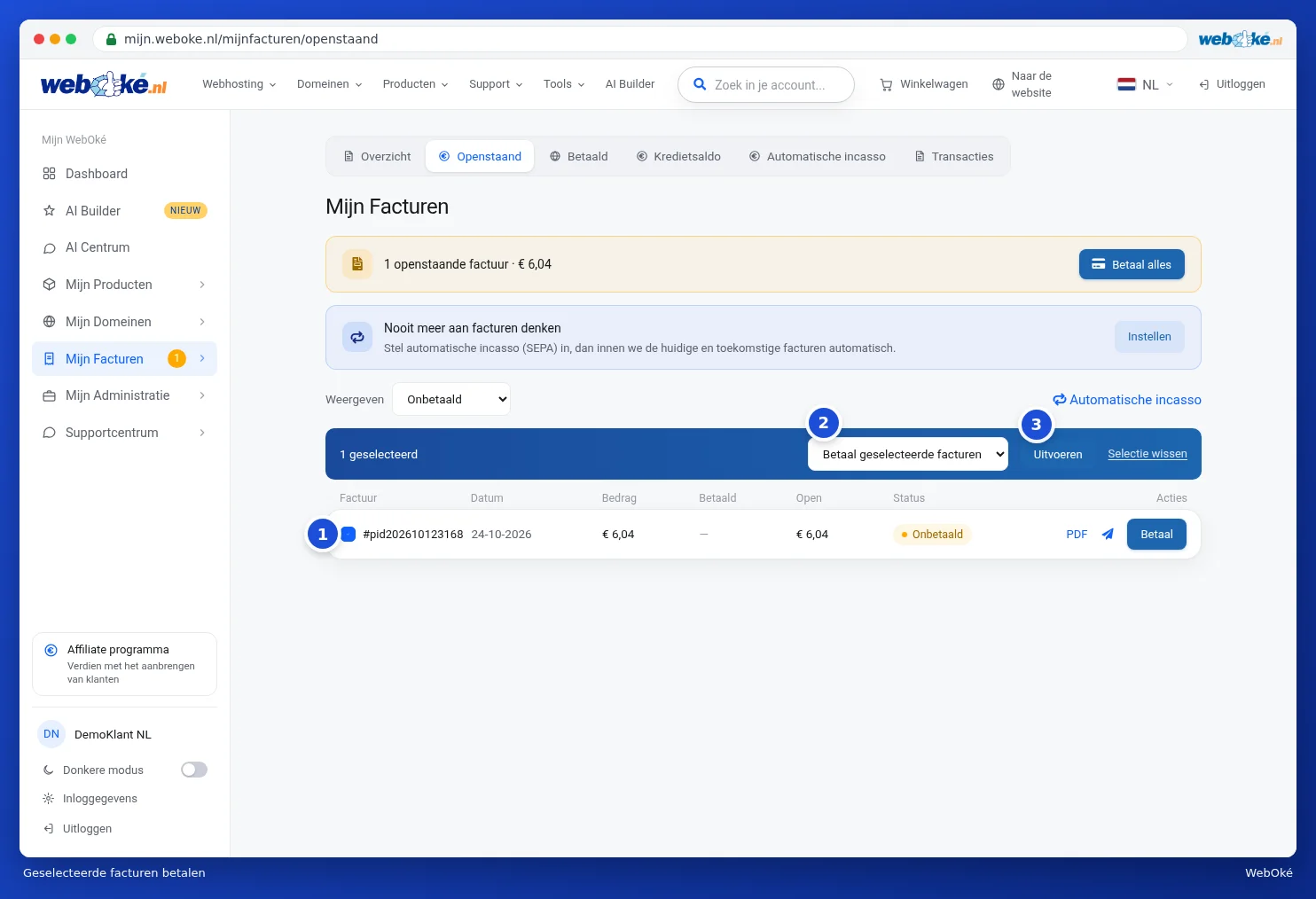
- In the overview, tick the invoices you want to pay (1). A blue bar appears showing the number of selected invoices.
- In the drop-down list (2), choose Pay selected invoices.
- Click Execution (3). You'll go to the payment screen showing the total amount of your selection.
The same drop-down list also contains Email selected invoices and Print selected invoices. Printing produces a single PDF with all the chosen invoices one after another. Use Clear selection to remove all the ticks again.
The payment screen
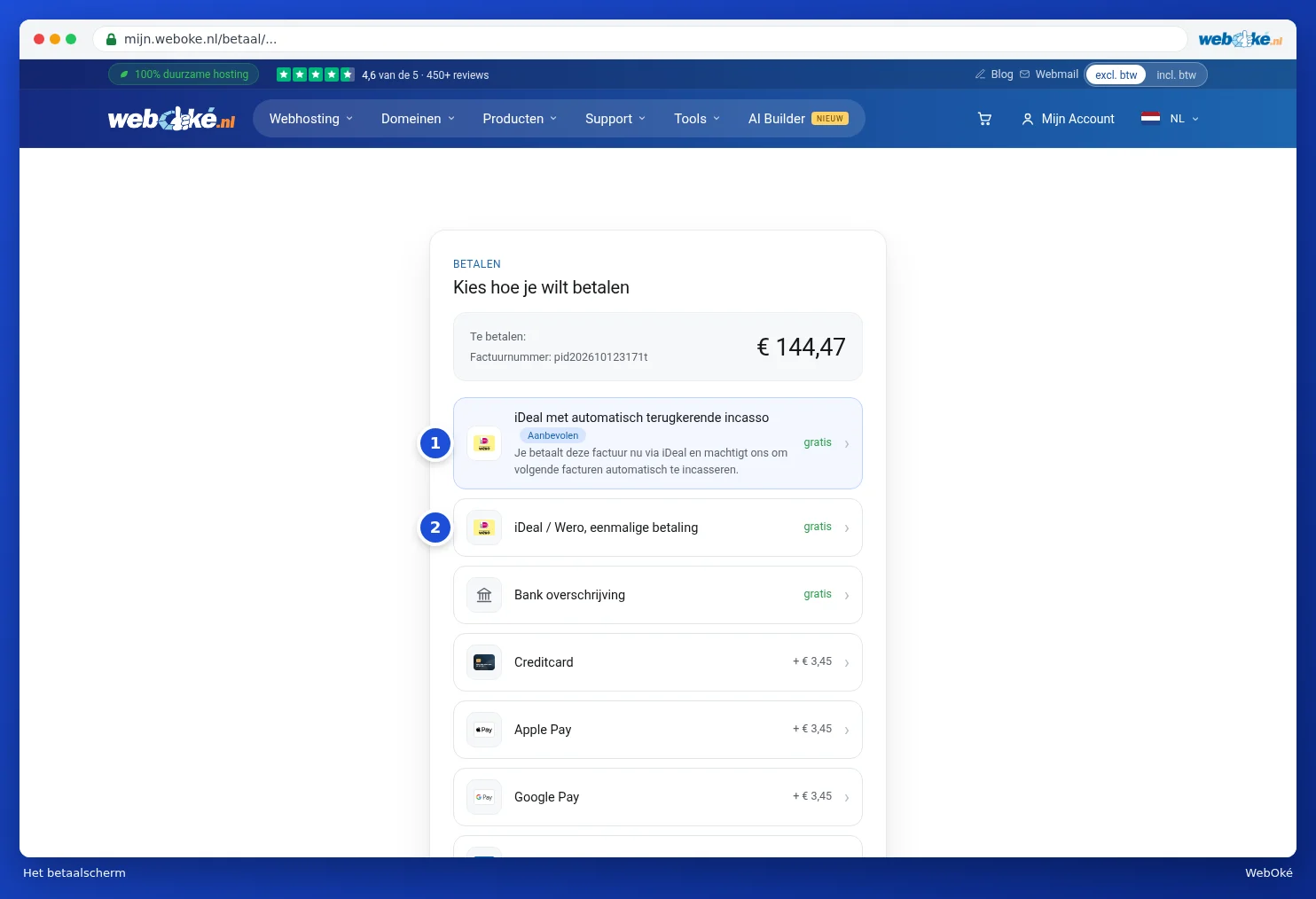
On the payment screen, you'll see the amount at the top and the payment methods below it. Which methods you see depends on your country. These may include iDEAL, credit card, PayPal, Bancontact and a regular bank transfer. Some methods carry a small surcharge, which is shown directly next to the method. If you have credit on your account, you'll see Pay with your credit balance at the top. With iDEAL with automatic recurring direct debit (1), you pay the invoice and set up automatic direct debit in one go, see Setting up or stopping direct debit. With iDEAL / Wero; one-off payment (2), you only pay this invoice. A detailed explanation of all the methods and of the bank transfer can be found in Paying: payment methods, bank transfer and credit balance.
After an online payment, you'll return to My WebOké and receive a payment confirmation by email. The invoice then shows as Paid, and on the invoice page you'll see This invoice has been paid. (1) along with the date. With a bank transfer, the invoice remains outstanding until your payment has reached us.

Please note: if automatic direct debit is already in progress for an invoice, the invoice will show as In progress. Don't pay it yourself again in that case. If you'd still like to pay it yourself, you can do so via the link on the invoice page: we'll first cancel the direct debit instruction, provided it hasn't already been submitted to the bank.