
Chapter 11 · 11.1
Deck: boards, lists and cards, and using them together
Watch it in a short video
Deck is a task board, also known as a kanban board. You create a board for a project, with lists such as To Do, In Progress and Done. Each task is a card that you move from list to list. This way, you can see at a glance who's doing what and what still needs to happen. Deck is included in every WebOké package.

The Deck screen
- Your boards are on the left. Use Add board (1) to create a new board: give it a name and a colour.
- Each column is a list (2). The number after the name is the number of cards.
- A card (3) shows the title, tags, the due date and who's working on it. A small icon means there's a description, attachment or comment attached to it.
- Use the card with a plus sign (4) at the top of a list to add a card. Type the title and press Enter.
- Use Add List (5) to create a new column.
- Use Open details (6) to open the board's sidebar, to share the board and manage tags.
You move a card by dragging it with the mouse to another list or place. You can also drag lists to change their order. Use Search cards at the top right to search all cards on the board, and use the funnel icon to filter by tag, person or due date.
Filling in a card
Click a card. The card opens in a window with the tabs Details, Attachments, Comments and Activity.
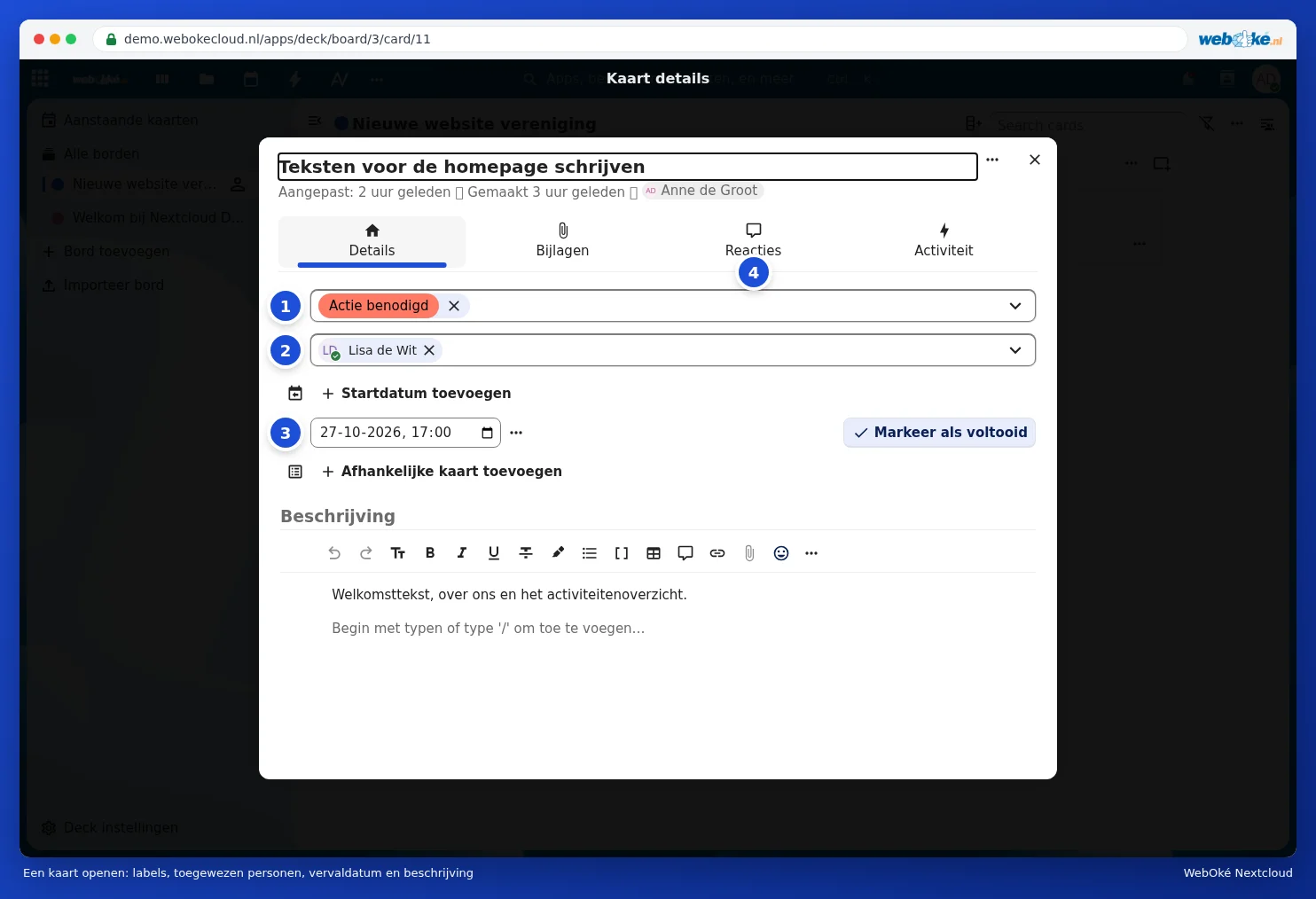
- Tags (1): colours to group cards. By default there are Finished, To review, Action needed and Later. You create your own tags in the board's sidebar.
- Assign (2): choose who takes on the task. That person receives a notification.
- Due date (3): the deadline. Use Add start date to also set a start. Use Mark as done to tick off the card.
- Under Comments (4) you discuss the task, and under Attachments you add files. Type a description in the large field; you can use formatting, lists and checkboxes.
Sharing a board with others
- Click Open details at the top right. The board's sidebar opens on the Share tab.
- Click the field under Select account (1) and type the name of a colleague, a group or a team. Click the name.
- Choose what each person (2) is allowed to do. With Can edit they can create and change cards. Use the three dots to also give the right to share or manage the board (lists and tags), or to remove someone again.
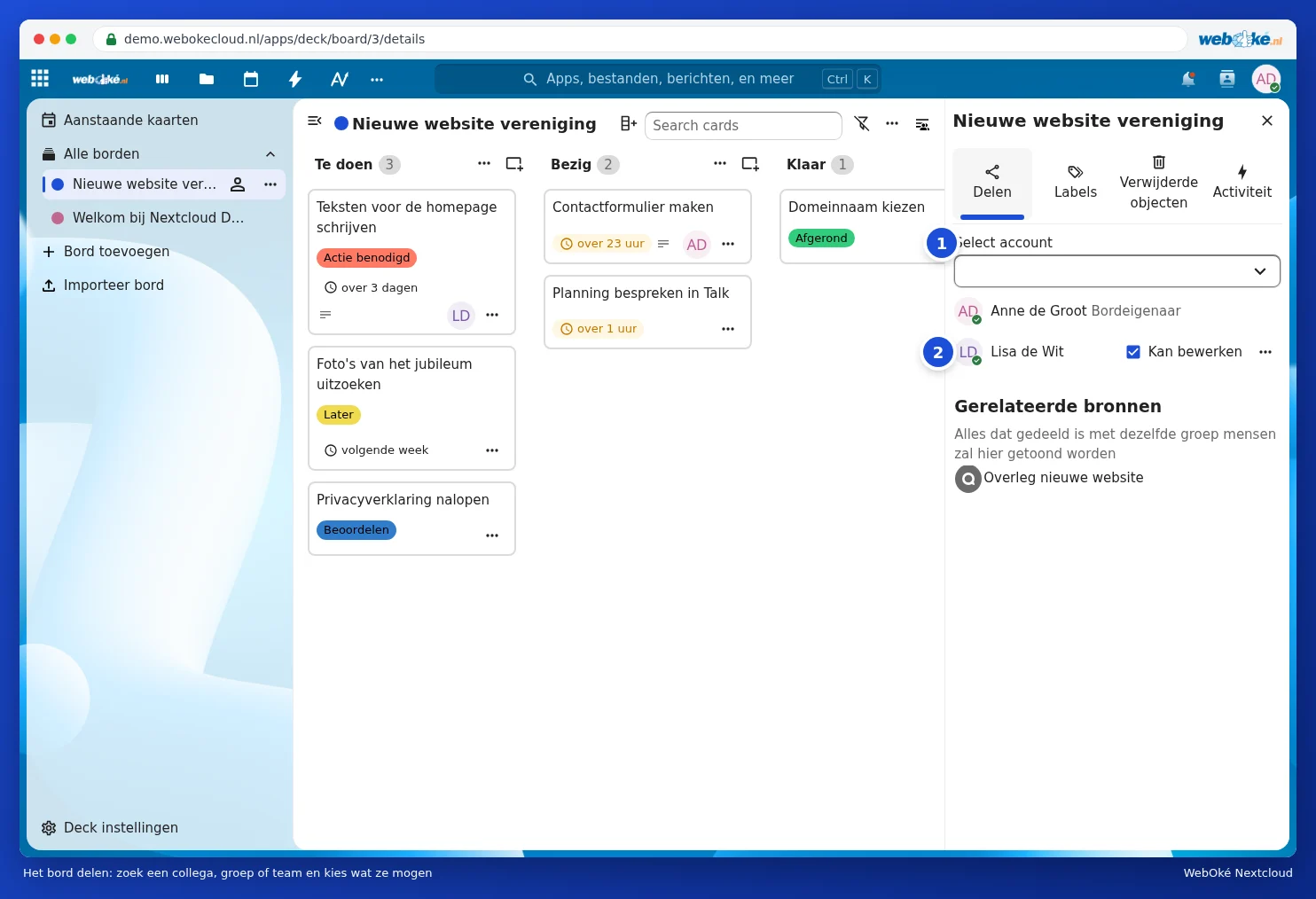
In the same sidebar, you manage the board's Tags and find deleted lists and cards under Deleted items. Everyone you share the board with sees it in their own Deck under All boards. You can't share with people without an account in Deck; use a shared folder or Talk with a guest link for that instead.
The board menu
Click the three dots next to a board on the left (1). You can edit, clone, archive or delete the board. Use Due date reminders (2) to choose whether you get a notification for cards that are about to expire. Export board (3) creates a file of the entire board, as a backup or to import it into another Nextcloud using Import board.

All your deadlines in one place
Under Upcoming cards are the cards with a due date from all your boards, divided into Expired, Today, Tomorrow, Next 7 days and Later. You can read how to add those cards to your Calendar or Dashboard in Using the Dashboard and apps together and A Deck board with deadlines in your calendar.
Deck on your phone
On Android, you can use the Nextcloud Deck app, a community app. You log in with your Nextcloud address, just as with the Nextcloud app. On the iPhone and iPad, you use Deck in the browser. See also Talk, Notes and Deck on your phone.
Tip: a board is also handy at home: a shopping board, a DIY board for renovations, or a board with the kids' chores.