
Chapter 11 · 11.3
Creating and sharing forms and surveys, and viewing the responses
Watch it in a short video
Available in packages with Office. Forms is included in your WebOké Nextcloud as soon as your package has at least one Office Suite licence. Then everyone in your package can use Forms. See Which apps are included in my package?.
With Forms, you create a survey, a sign-up form or a poll, just like with Google Forms or Microsoft Forms. But the responses stay in your own Nextcloud. You share the form with people in your Nextcloud or with everyone via a link.
Creating a form
- Open Forms from the app menu and click New form. The form opens straight away in Edit mode (3).
- Type the title at the top (1) and, if you like, a description.
- Click Add a question and choose the type of question. Type the question (2) and, for multiple-choice questions, the answers. Use the menu to the right of the question to make it required; required questions get an asterisk.
- Use View to see the form as the person filling it in will see it. Use Share (4) to send it round.

Saving happens automatically. You move a question using the handle (the dots) to the left of the question.
Types of questions

| Type | Use |
|---|---|
| Radio buttons | Choose exactly one answer, for example Yes, No or Maybe |
| Checkboxes | Tick multiple answers |
| Dropdown | One answer from a long list |
| Short answer | A name, phone number or email address |
| Long text | Comments or an explanation |
| Date, Time | For example a date of birth, a preferred day or a time |
| Linear scale | Give a score, for example from 1 to 5 |
| Grid | Multiple questions with the same answers in a table |
| Ranking | Put answers in order |
| File | The person filling in the form sends in a file |
| Colour | The person filling in the form picks a colour |
Sharing the form
Click Share in the top right. The sidebar opens on the right with the Share and Settings tabs.
- Type the name of a person, group or team from your Nextcloud in the search field (1) to share the form with them.
- Click the plus icon next to Share link (2) to create a public link. Anyone can then fill in the form, even without an account. Copy the link and put it in an email, newsletter or on your website.
- The Internal link only works for people who already have access in your Nextcloud.

Form settings
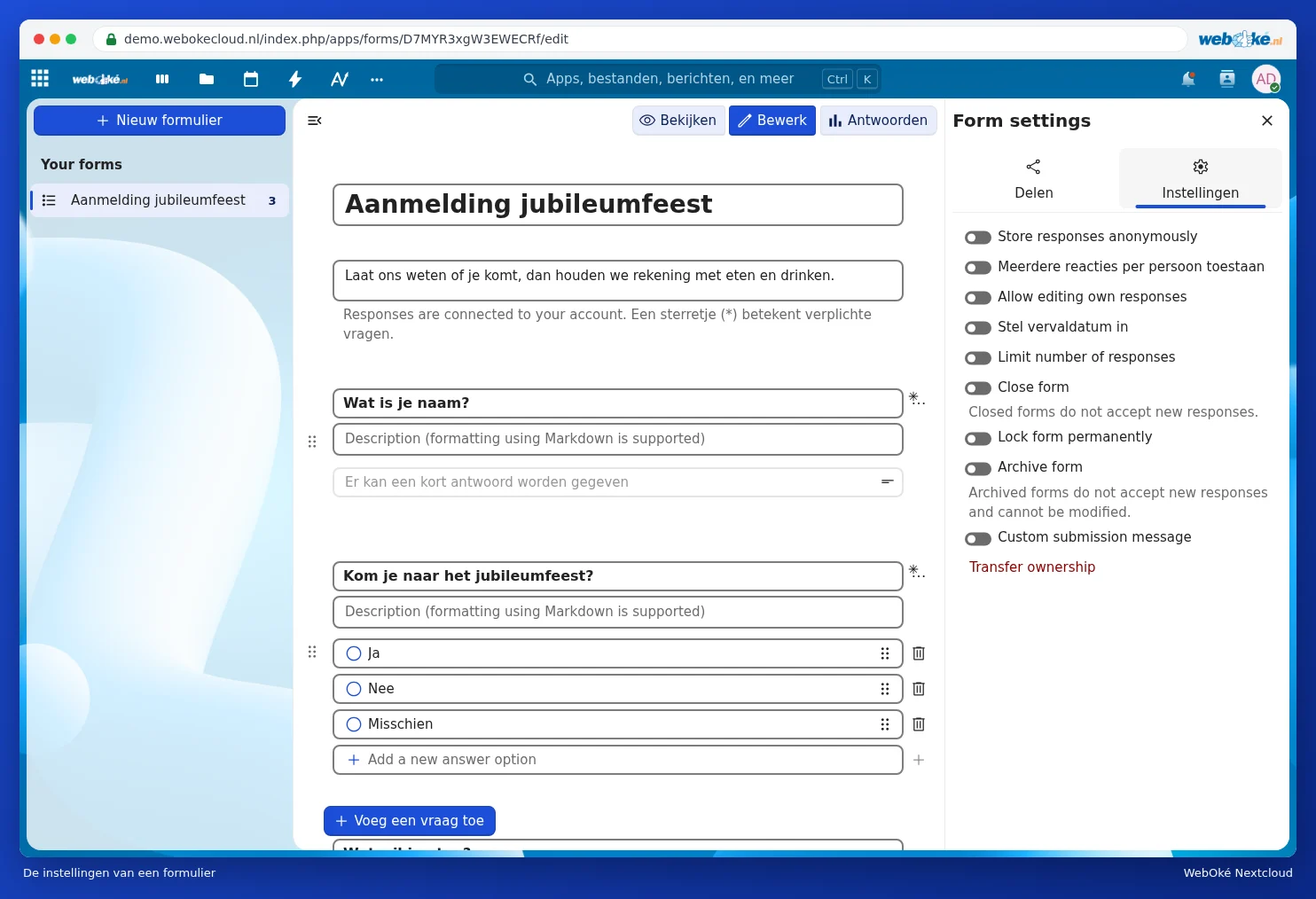
On the Settings tab, you decide, among other things:
- whether the responses are stored anonymously;
- whether someone may fill in the form more than once (Allow multiple responses per person) and may change their answer later;
- until when the form stays open (Set expiration date) and the maximum number of responses allowed;
- whether the form is closed or archived, and what thank-you message the person filling it in sees.
Most of these settings are still shown in English (for example Store responses anonymously and Close form); that comes from Nextcloud itself.
What the person filling in the form sees

The person filling in the form answers the questions and clicks Submit at the bottom. Clear form empties everything again.
Viewing the responses
Open the form and choose Answers at the top. Under Summary (1) you see, for each question, how many people chose what, with percentages. Under Answers (2) you see all the submissions listed separately. Use Create spreadsheet (3) to put all the responses into a spreadsheet in your Nextcloud; the three dots (4) show more options. Read A survey with the answers straight into a spreadsheet to find out how that works.

Please note: are you asking for personal data, such as name, address or phone number? Only ask for what you really need, explain what you'll use it for, and delete the responses once you no longer need them.