
Chapter 2 · 2.5
Setting your status: online, away or do not disturb
Your status shows others in your Nextcloud whether you're available. They see your status next to your profile picture, in Talk, when sharing, and in the Recent statuses widget. The green tick next to your profile picture means: online.
Choosing your status
- Click your profile picture in the top right.
- Click Set status (1).
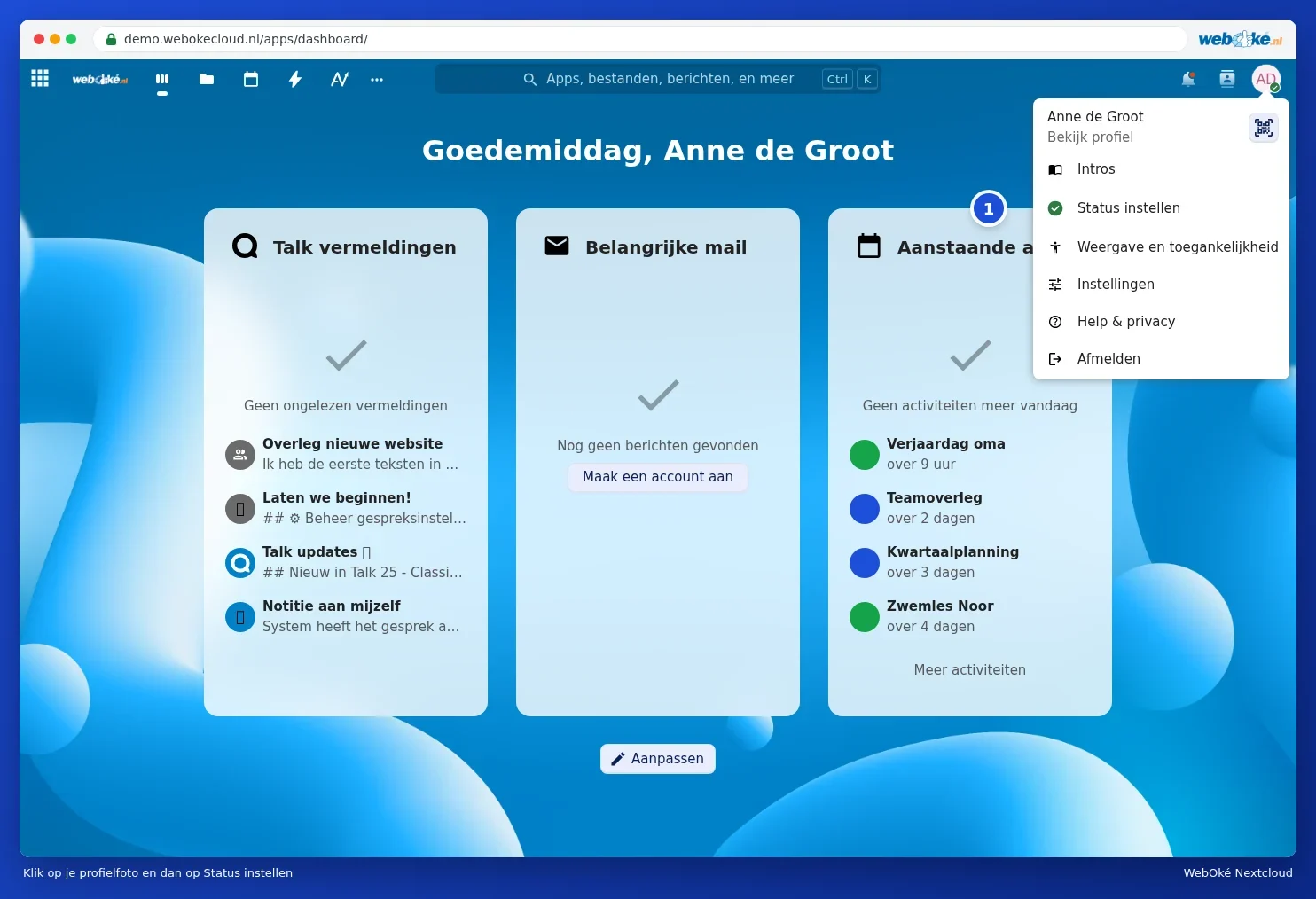
The Online status window opens. Choose one of these:
| Status | Meaning |
|---|---|
| Online | You're here. |
| Away | You've stepped away for a bit. Nextcloud also sets your status to away automatically if you're inactive for a while. |
| Busy | You're here, but busy. |
| Do not disturb | You won't get any notifications, not even from Talk. Handy during a presentation. |
| Invisible | You're online, but others see you as away. |

A status message
Under Status message, type a short text, such as On a course until 2 pm, or choose one of the examples: In a meeting, Commuting, Be right back, Working remotely, Out sick or Vacationing. Under Clear status after, choose when the message should disappear automatically. Click Set status message to save it, or Clear status message to remove it.
Tip: Away for longer, say on holiday? Set an out-of-office message too. Others will see it when they invite you. See Setting working hours and absence.