
Chapter 7 · 7.2
Installing Nextcloud Files on Windows
Here's how to set up the Nextcloud Files desktop app on a Windows computer and connect it to your WebOké Nextcloud. Allow about ten minutes.
Step 1: download
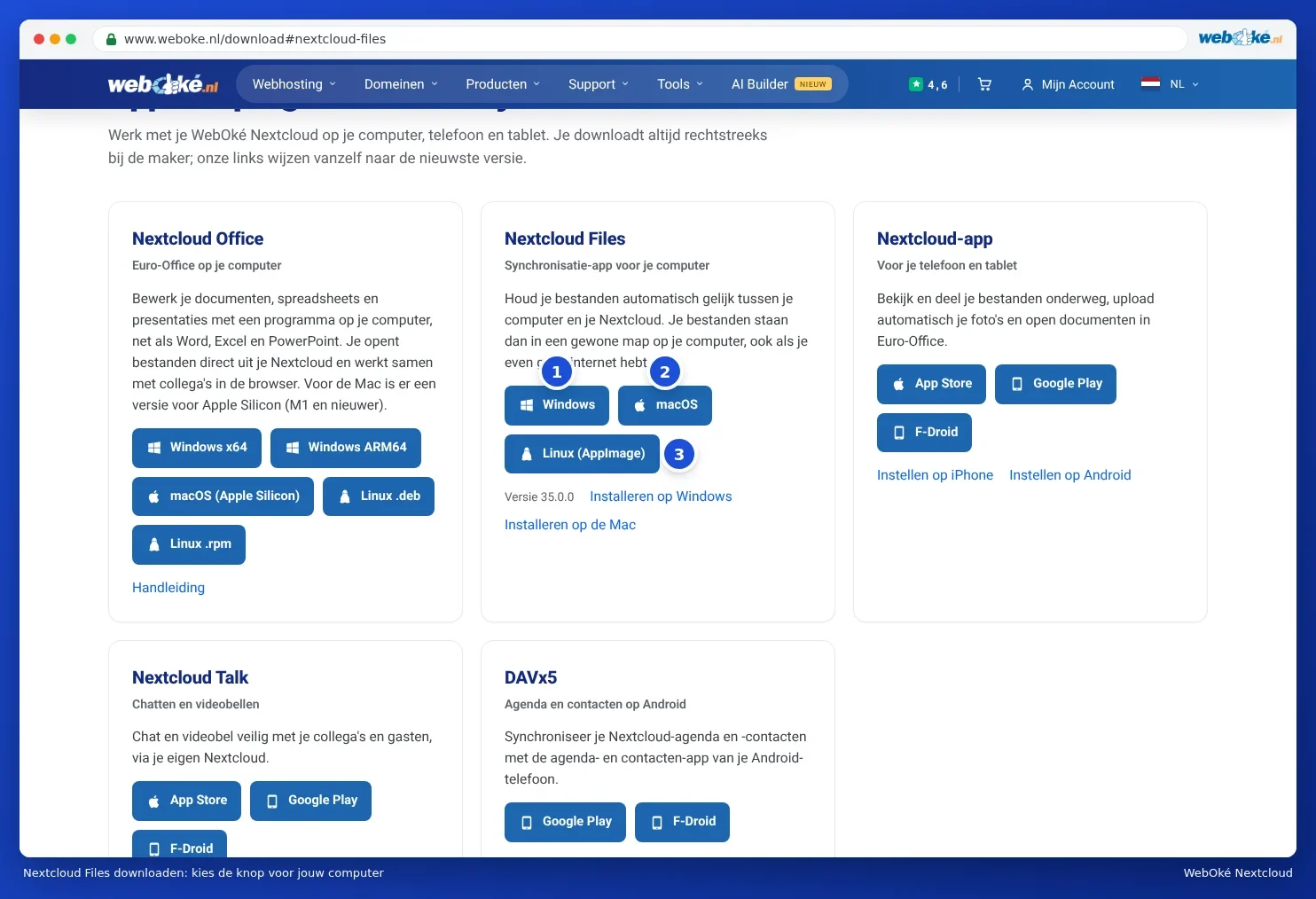
- Go to www.weboke.nl/download and click Windows next to Nextcloud Files (1). Or use this direct link: Nextcloud Files for Windows.
- You download directly from Nextcloud. The file is called something like Nextcloud-35.0.0-x64.msi and ends up in your Downloads folder.
Step 2: install
- Double-click the downloaded file.
- Follow the steps in the installer. You can leave the suggested settings as they are.
- Windows asks whether the app may make changes. Click Yes. You'll need administrator rights on the computer for this.
- After installation, the app starts automatically. You'll see the login window, and the Nextcloud cloud icon appears at the bottom right of the taskbar. If you don't see the icon, click the arrow pointing up next to the clock.
Step 3: connect your Nextcloud
This part of the app is still largely in English, even on a computer set to another language. Below are the names as they appear in the app.
- In the Log in to Nextcloud window, enter the address of your WebOké Nextcloud next to Server address, for example https://demo.webokecloud.nl. Click Log in.
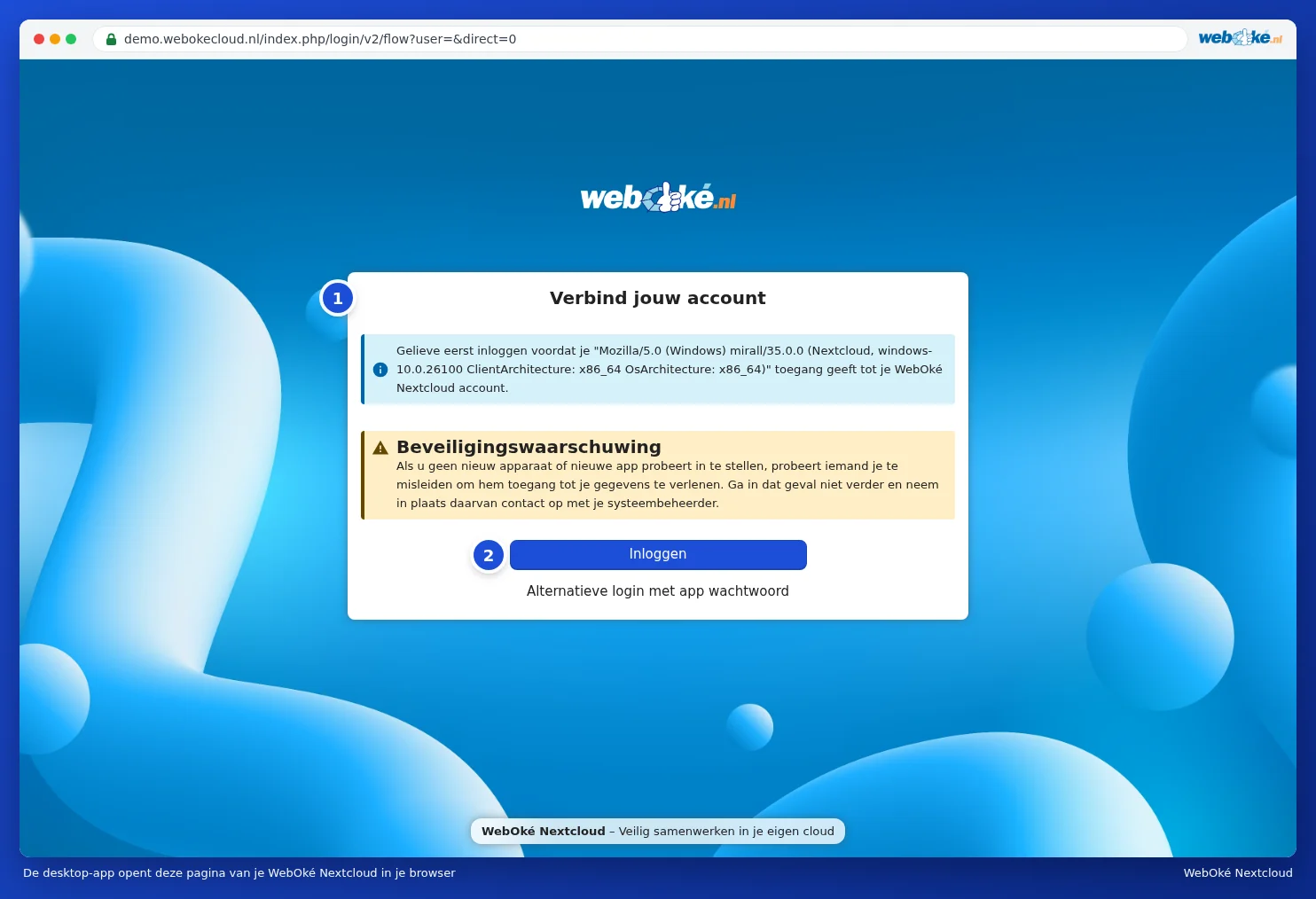
- The app opens your browser on the Connect to your account page (1). Click Login (2). Meanwhile, the app shows Switch to your browser. If the browser doesn't open automatically, click Copy link in the app and paste the link into your browser.
The page shows a Security warning: only grant access if you're setting up the app yourself right now. Above it you'll see the name the app identifies itself with; for the desktop app, this is a long technical name containing "mirall" and "Nextcloud". That's normal. - If you're not logged in yet, log in with your username and password and enter the login code you receive by email or in your authenticator app.
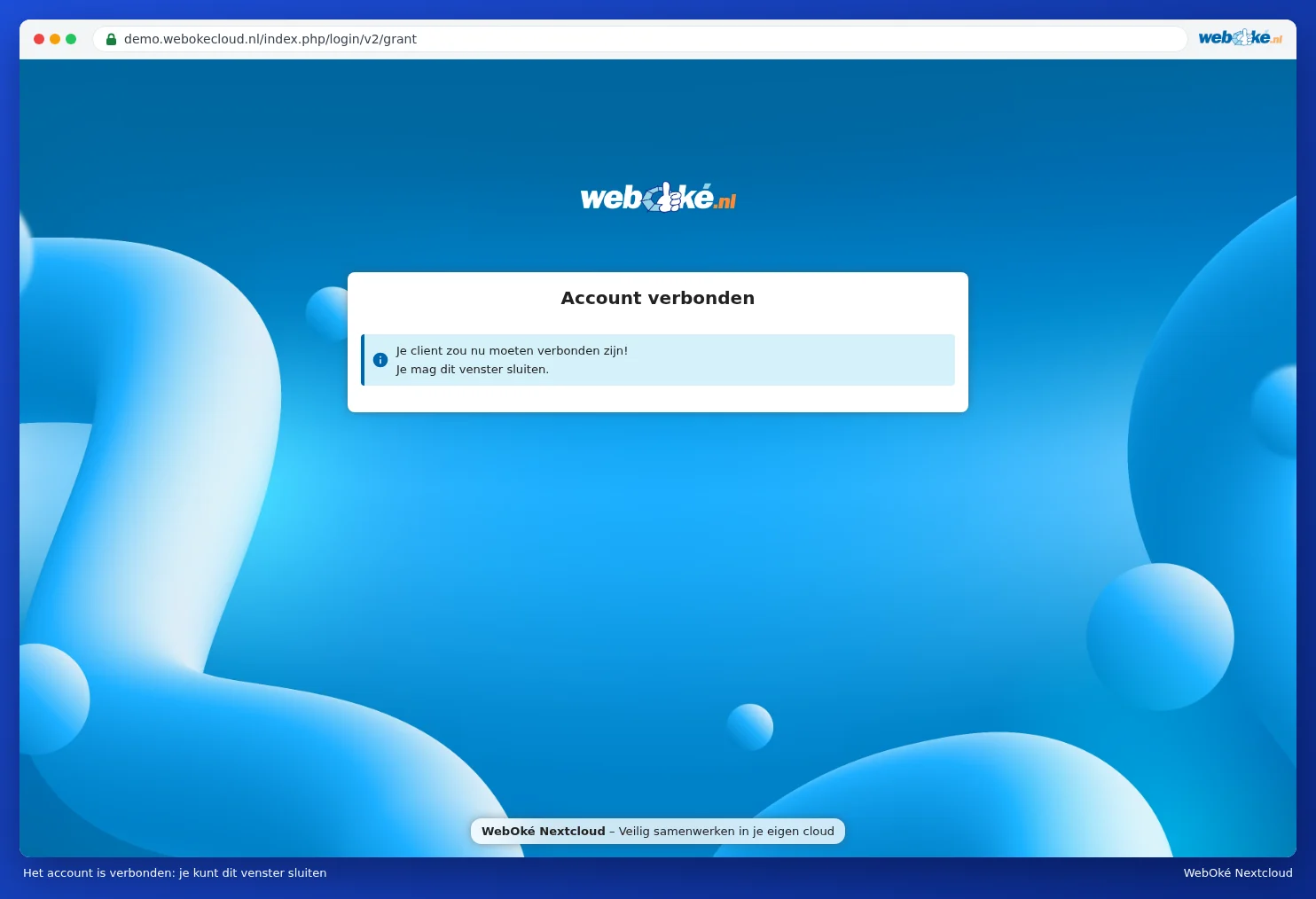
- You'll see Account access, showing the name you're logged in as. Click Grant access (3). The browser then confirms that your account is connected and that you can close the window.
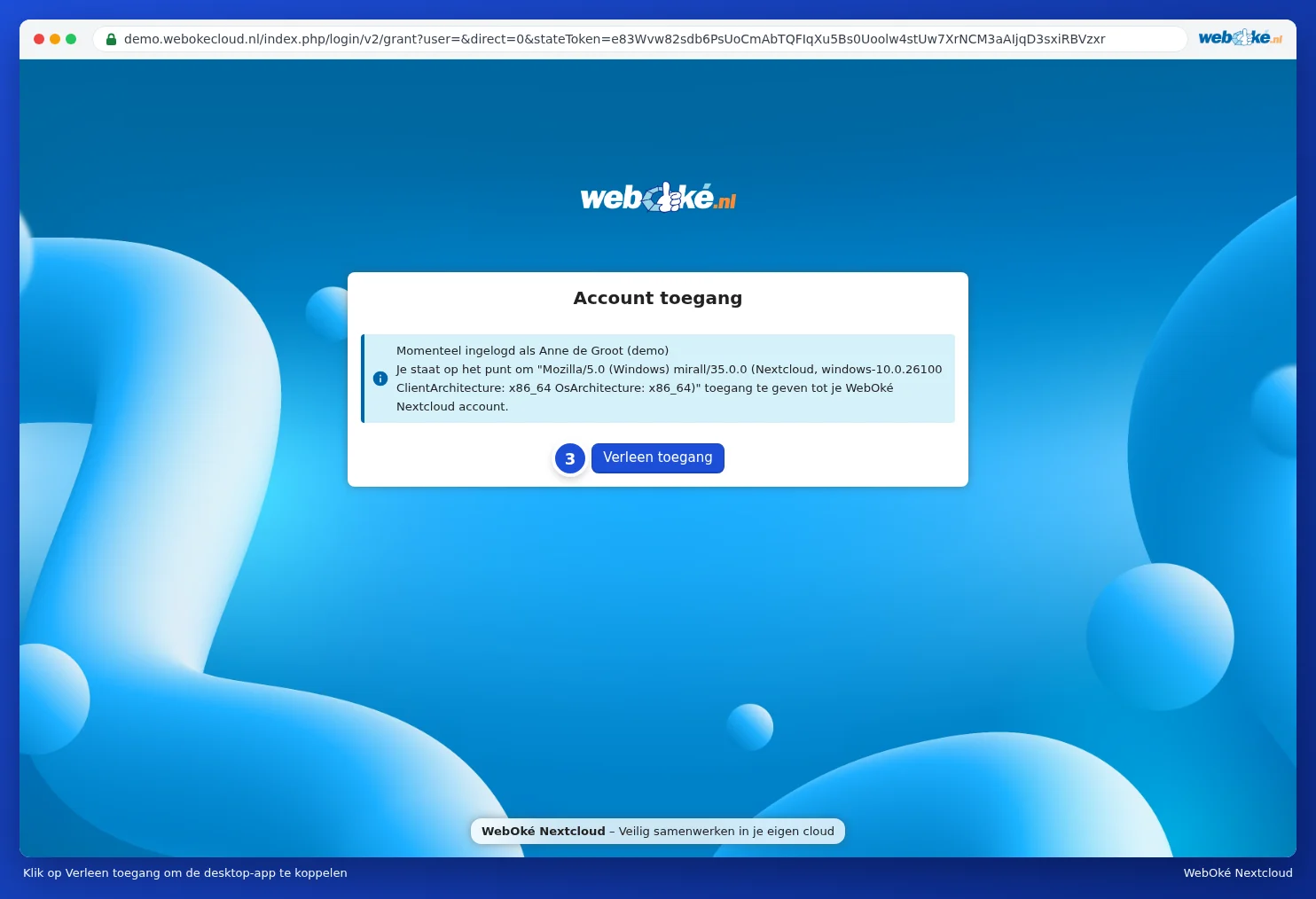
So you don't need to create an app password: the app handles that itself. Afterwards, you'll find the computer listed in your Nextcloud under Settings, Security, under Devices & sessions (see Viewing, revoking, or remotely wiping devices and sessions).
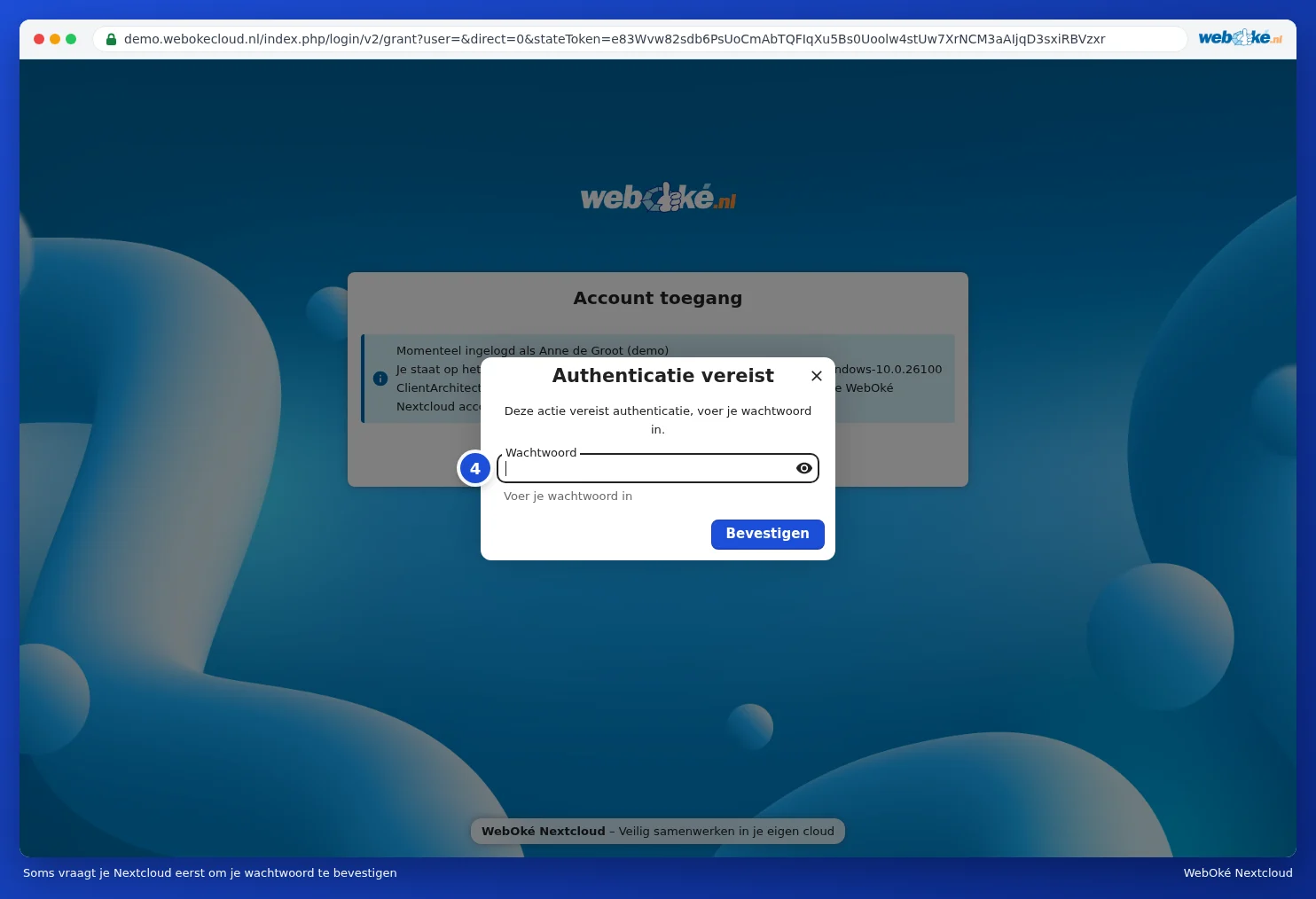
If you've been logged in to the browser for a while, your Nextcloud may first ask you to confirm your password: Authentication required. Enter your usual password (4) and click Confirm.
Step 4: choosing what goes on your computer
Back in the app, choose how you want to sync:
| Choice in the app | What it does | When to choose it |
|---|---|---|
| Virtual files | You see all your files and folders, but a file is only downloaded when you open it. | Our recommendation for most people, especially on a laptop. See Virtual files: see everything, only download what you open. |
| Synchronize everything | Everything from your Nextcloud is stored as an actual file on your computer. | If you want offline access to all your files, anywhere, and your drive has enough space. |
| Choose what to sync | You tick which folders go on your computer. | If you only need a few folders on this computer. See Selective sync: only certain folders. |
Next to Local sync folder, you'll see where the folder will be placed on your computer. By default, this is the Nextcloud folder in your user folder. If you want a different location, click Choose. Pick an empty folder on a regular drive; virtual files don't work on a network drive or directly in the root of a drive (such as D:\). Then click Connect.
The app starts straight away. How long the first sync takes depends on the amount of files and your internet connection. With virtual files, it's fast, since nothing is downloaded yet.
Step 5: finding your files
- Open File Explorer. On the left, you'll see Nextcloud with the blue cloud icon. That's where your files are.
- Click the cloud icon at the bottom right of the taskbar to see what the app is doing. You'll find an explanation of this window in The cloud icon: reading status, activity and errors.
- From now on, the app starts automatically when you turn on the computer.
Tip: right-click a file in the Nextcloud folder in File Explorer. Under Nextcloud, you'll find options such as Share options and Open in browser. This way, you can share a file without opening the browser first. (On Windows 11, these options sometimes appear under Show more options.)
Please note: Windows doesn't allow certain characters in file names, such as : ? * " < > |. If such a name exists in your Nextcloud, the app will skip that file. You can read how to fix this in Cleaning up files with forbidden characters so Windows syncs again.
Updating
The app automatically checks for a new version and lets you know. You can also always download the latest version via the button on our download page and install it over the old one. Your settings and folder will stay exactly as they are.